

How to Merge PDFs Into One File (No Upload, Works on Phone and Desktop)
Combine several PDFs into a single file right in your browser—no upload, works on phone and desktop—and reorder or delete pages before downloading merged.pdf.

Merging multiple PDFs into a single file—while reordering pages or deleting the ones you don't need—takes one visit to the PDF Merge tool: everything runs in your browser, your files are never uploaded, and the same page works on your phone and your desktop. Below is the exact workflow, with screenshots from this site's English interface and the results of our own measured test run.
What "no upload" means here
Most online PDF mergers work by sending your documents to a server, combining them there, and handing the result back to you. This tool takes the opposite approach: the merging happens inside your browser tab, on your own device. Your PDFs never leave your phone or computer, nothing waits on someone else's server, and the finished file is generated locally and saved straight to your downloads. That matters most when you're merging contracts, scans of ID documents, invoices, or anything else you would rather not hand to a third party.
Because the tool is a web page rather than an app, there is nothing to install. Open it in a desktop browser or in the browser on your phone, and you get the same workflow laid out for whichever screen you're on.
The rules at a glance
- Processing is local. Your files are read and combined in your browser; they are not uploaded anywhere.
- Phone and desktop. The same tool page serves both, with a layout that adjusts to smaller screens.
- Merge, reorder, delete. Combine your PDFs into one document, fix the order before merging, and drop the pages you don't want in the final file.
- One output file. When the merge finishes, you download a single PDF—in our test it was named merged.pdf.
How to merge PDFs step by step (desktop)
The whole flow lives on a single page:
| Stage | What you do | What you'll see |
|---|---|---|
| Open the tool | Go to the PDF Merge page in your browser | An empty workspace waiting for your files |
| Add your PDFs | Pick the PDF files you want to combine | Each selected file appears in a list |
| Arrange and trim | Reorder the files, remove any you added by mistake, and delete pages you don't want | The list now matches the document you have in mind |
| Merge | Start the merge | Your files are combined into one PDF |
| Save | Download the merged document | A single PDF lands in your downloads folder |
Open the tool. When you first arrive, the page is a clean slate—no clutter, just the space for adding files:
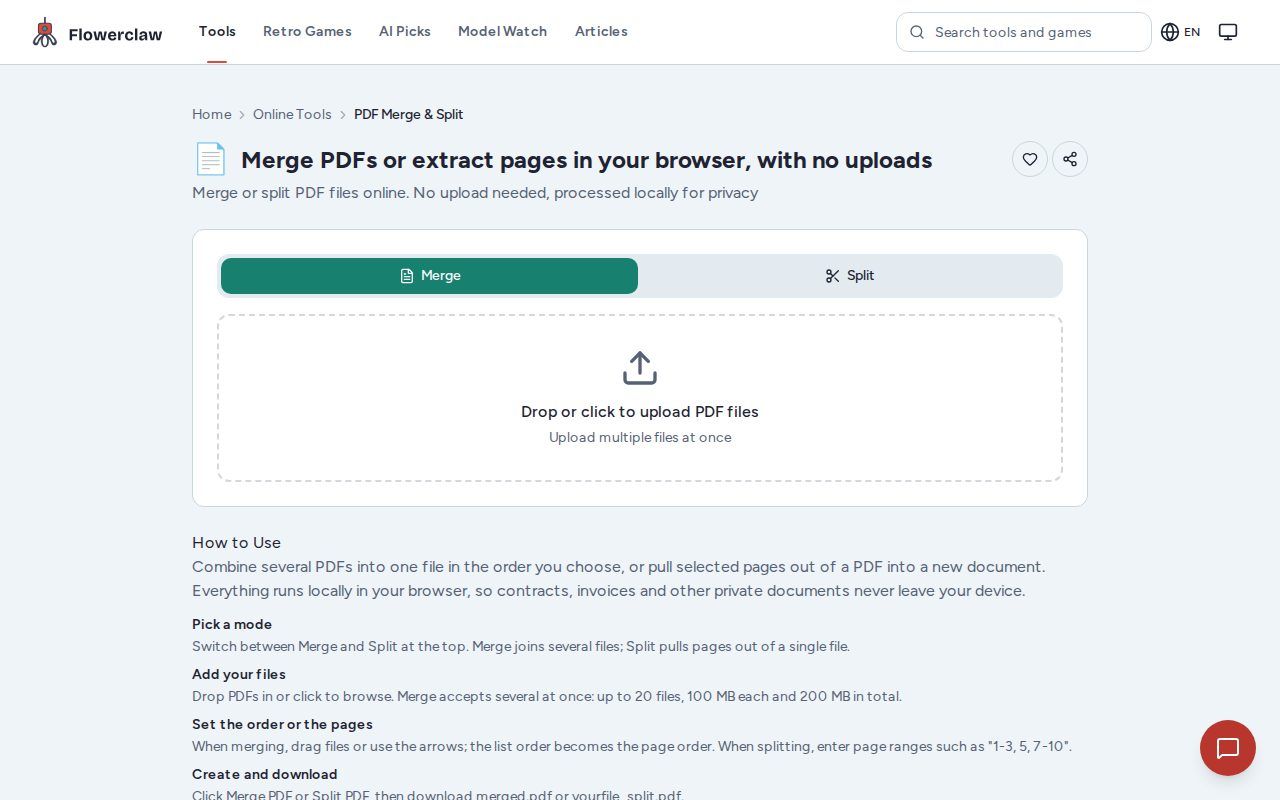
Add your PDFs. Use the file picker to choose the documents you want to combine—reports, scanned pages, e-tickets, whatever you're consolidating. As you select them, they appear in a list:
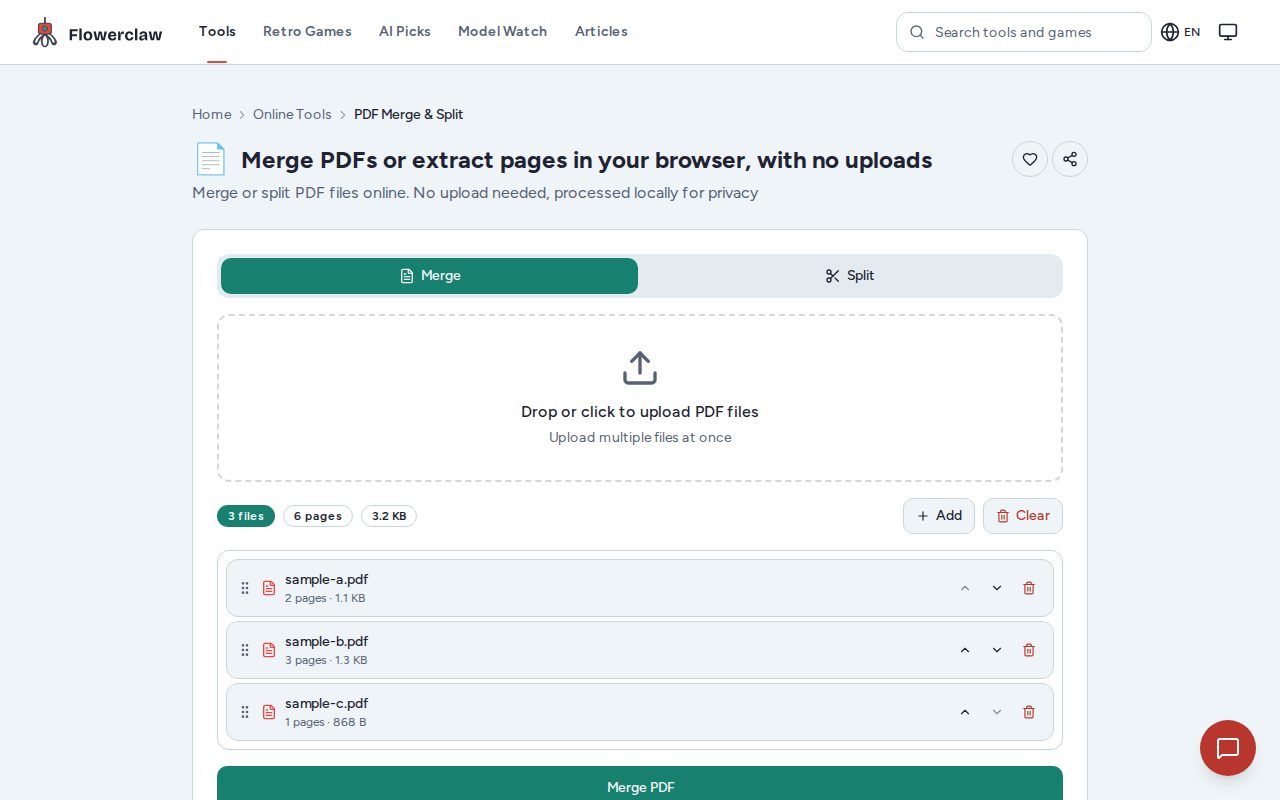
Arrange and trim. This is where the tool goes beyond a plain merge. If the order isn't right—say you picked the appendix before the cover—reorder the files so they merge in the sequence you want. Added something by mistake? Remove it from the list. And if one of your PDFs contains pages you don't need in the final document, delete those pages before merging so the result keeps only what you actually want.
Merge and save. Trigger the merge and the tool stitches everything into one PDF. Download it and you're done—your separate documents are now a single file you can email, print, or archive as one unit:
A real example, with measurements
To show what a finished merge looks like, we ran a test on this site's English interface. The combined document came out at 6 pages and 1968 KB in total, and it downloaded under the name merged.pdf. Those figures are from our own measured example—your page count and file size will depend on the documents you feed in, since every PDF is different.
Merging PDFs on your phone
The phone workflow mirrors the desktop one—there's no separate app and no different set of steps. Open your mobile browser, go to the tool page, and you'll see the same empty workspace, sized for the small screen:
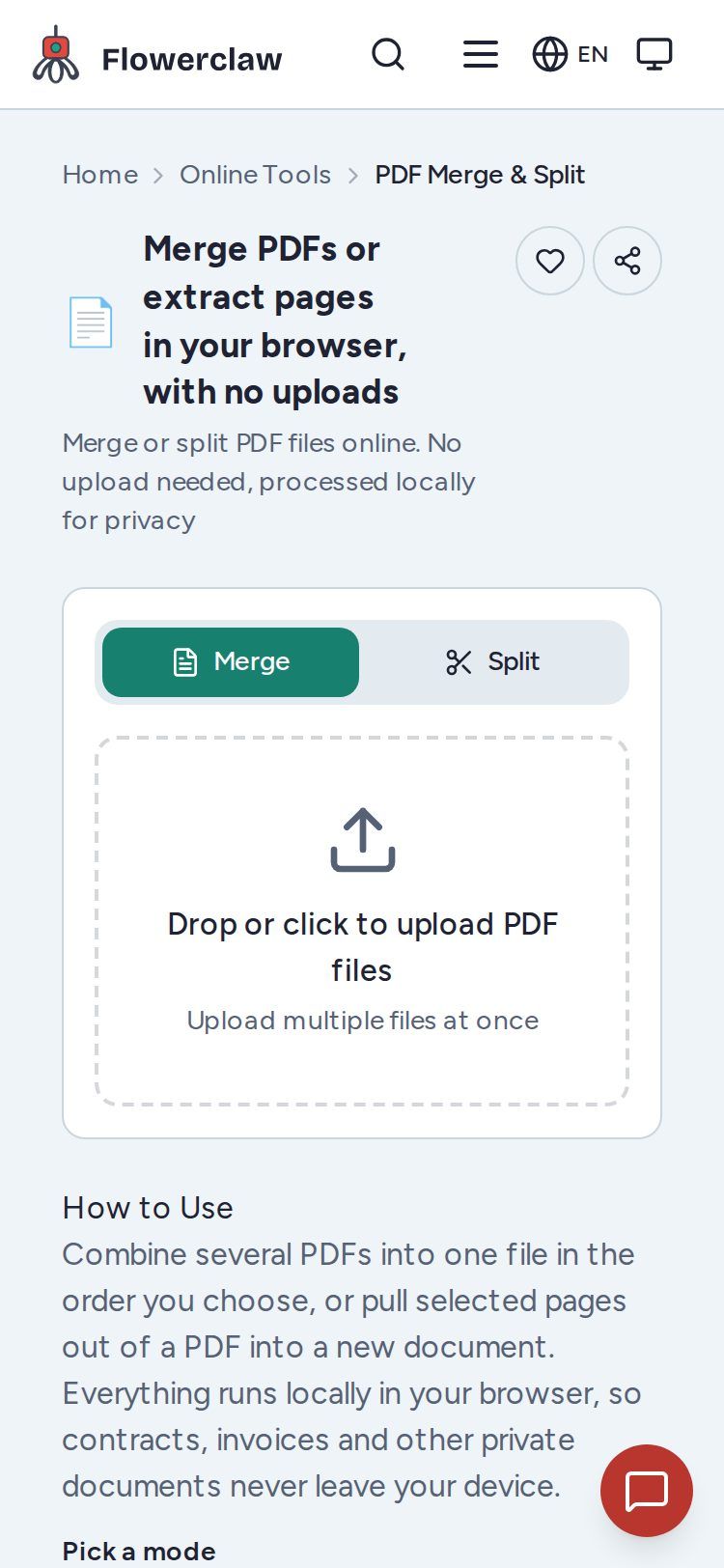
Tap to pick the PDFs stored on your device. They show up in a list, just like on desktop, and you can do the same tidying up—reordering, removing files, deleting unwanted pages—before you merge:
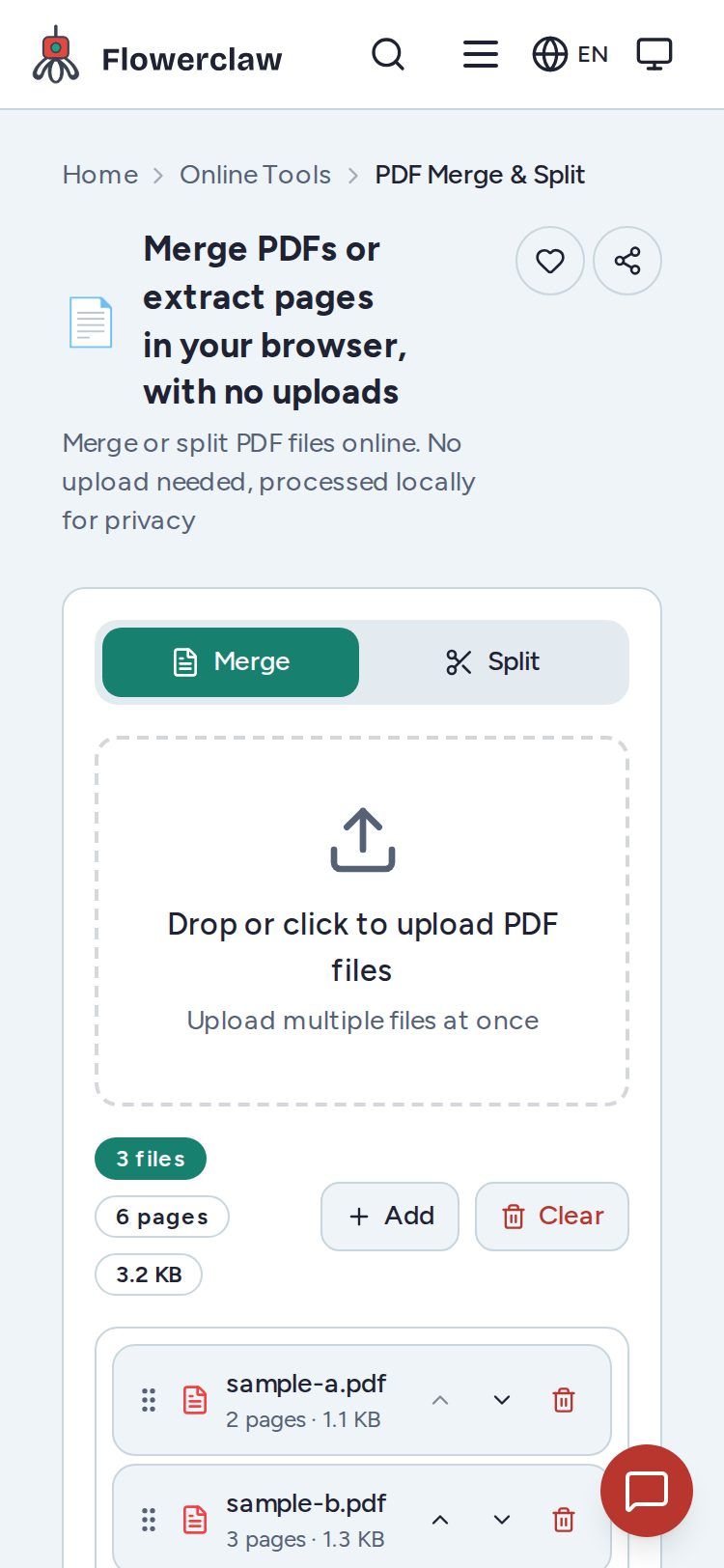
Merge, download, and the finished PDF lands in your phone's downloads, where you can share it to email or any app that accepts files. That makes the tool handy for consolidating receipts, tickets, or signed forms when you're away from your computer.
Common questions
Are my files uploaded anywhere? No. The merge happens in your browser on your own device—your PDFs are not sent to or stored on any server.
What will the merged file be called? In our test it downloaded as merged.pdf. Once it's on your device, you can rename it to whatever fits your filing system.
Can I control the order and remove pages? Yes. Reorder the files before merging to set the overall sequence, and delete the pages you don't want so the final document is exactly the pages you chose, in the order you chose.
Do I need to install anything? No. The tool is a web page—open it in a browser on your phone or desktop and start merging.
Does merging change what's on my pages? Merging combines your pages as they are; it doesn't rewrite or edit the content. If you need pages gone or moved, that's what the reorder and delete steps are for.
Does it work the same on phone and desktop? Yes. The workflow is identical; only the layout adapts to the screen, as the mobile screenshots above show.
Merge your PDFs now
If you have a pile of PDFs that should really be a single document, the fastest path is the PDF Merge tool: open it, add your files, put them in order, trim the pages you don't need, and download the result—no upload, no install, and the same simple flow whether you're on a phone or a desktop.