

How to Create an Electronic Signature: Draw It Online and Add a Transparent PNG to Word or PDF
Need your handwritten signature on a contract, a form or a cover letter? Draw it in your browser with a mouse or finger, download a transparent PNG and drop it into Word, Google Docs or a PDF in about three minutes. At the end: what the law says about signature images.
Play Signature Generator online
The short answer: most of the time, an "electronic signature" just means an image of your handwritten signature with a transparent background. Place it on the signature line in Word, Google Docs or a PDF and it looks as if you signed by hand. With the online Signature Generator you draw it, click Download transparent PNG, and you are done in under three minutes. Your signature is processed only in your browser and is never uploaded.
Keep two things apart, though: a signature image solves "my signature needs to be on this document", while a legally robust electronic signature also has to prove who signed and that nothing changed afterwards. The last section covers that.
Step 1: Choose a pen and ink colour
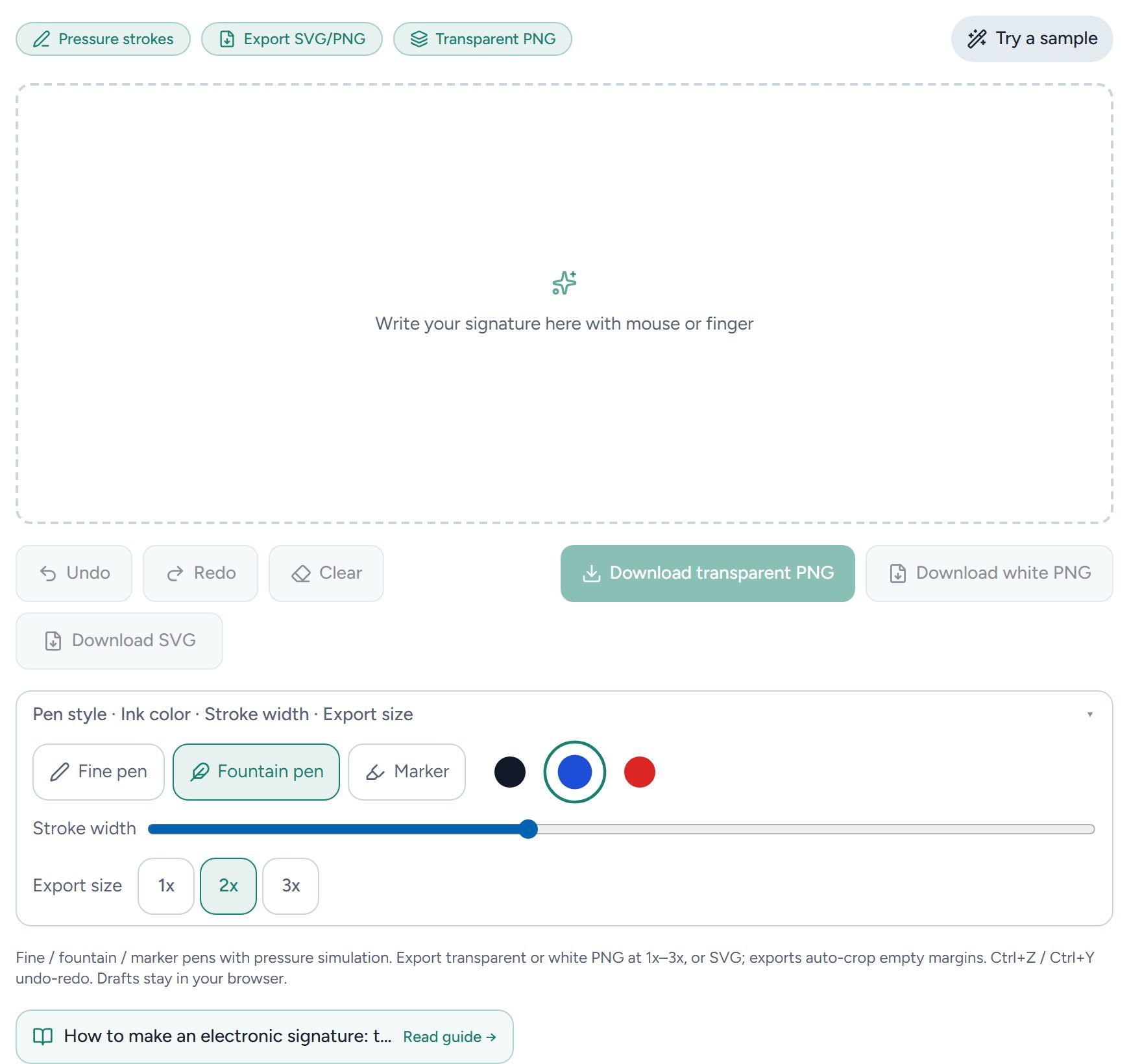
Open the Signature Generator and the drawing pad is right at the top. The pen settings are in the collapsible bar under the pad, labelled "Pen style · Ink color · Stroke width · Export size":
- Pen style: fine pen, fountain pen or marker. For contracts, the fountain pen looks most like real ink because the line width varies.
- Ink colour: black, blue or red. Formal documents usually use black or blue.
- Stroke width: fine-tune it with the slider.
- Export size: 1x, 2x or 3x. Choose 2x or 3x if the signature will be printed or enlarged.
Step 2: Write your signature
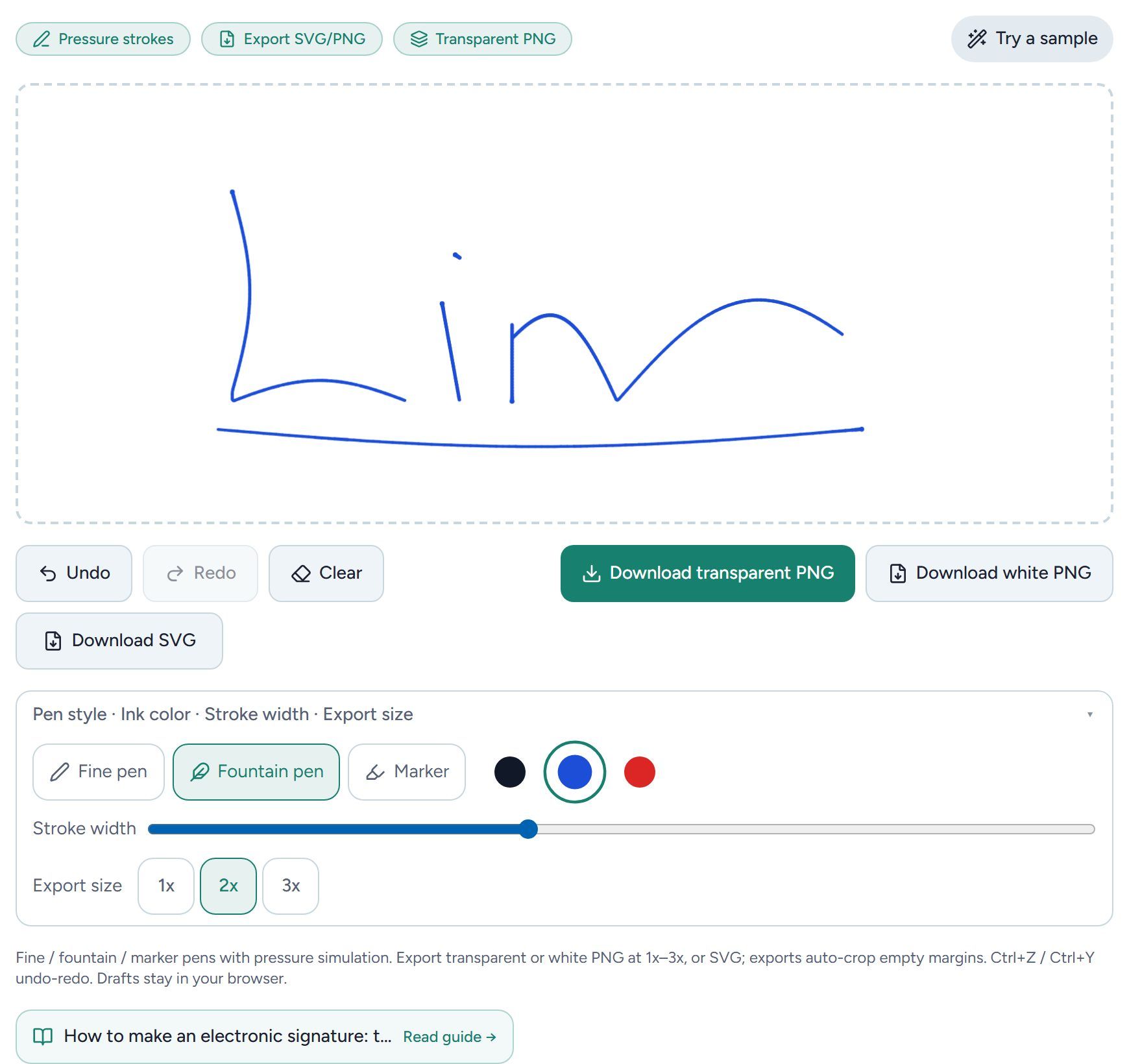
On a computer, hold down the left mouse button and write; on a phone, just use your finger. The tool smooths your strokes and simulates pen pressure: slow strokes get thicker, fast strokes get thinner, so speed up a little on connecting strokes and the ends of letters for a more natural, fountain-pen look.
Messed it up? No need to start over:
- Undo the last stroke: Ctrl+Z (or click Undo).
- Redo: Ctrl+Y.
- Even after Clear, Redo brings every stroke back.
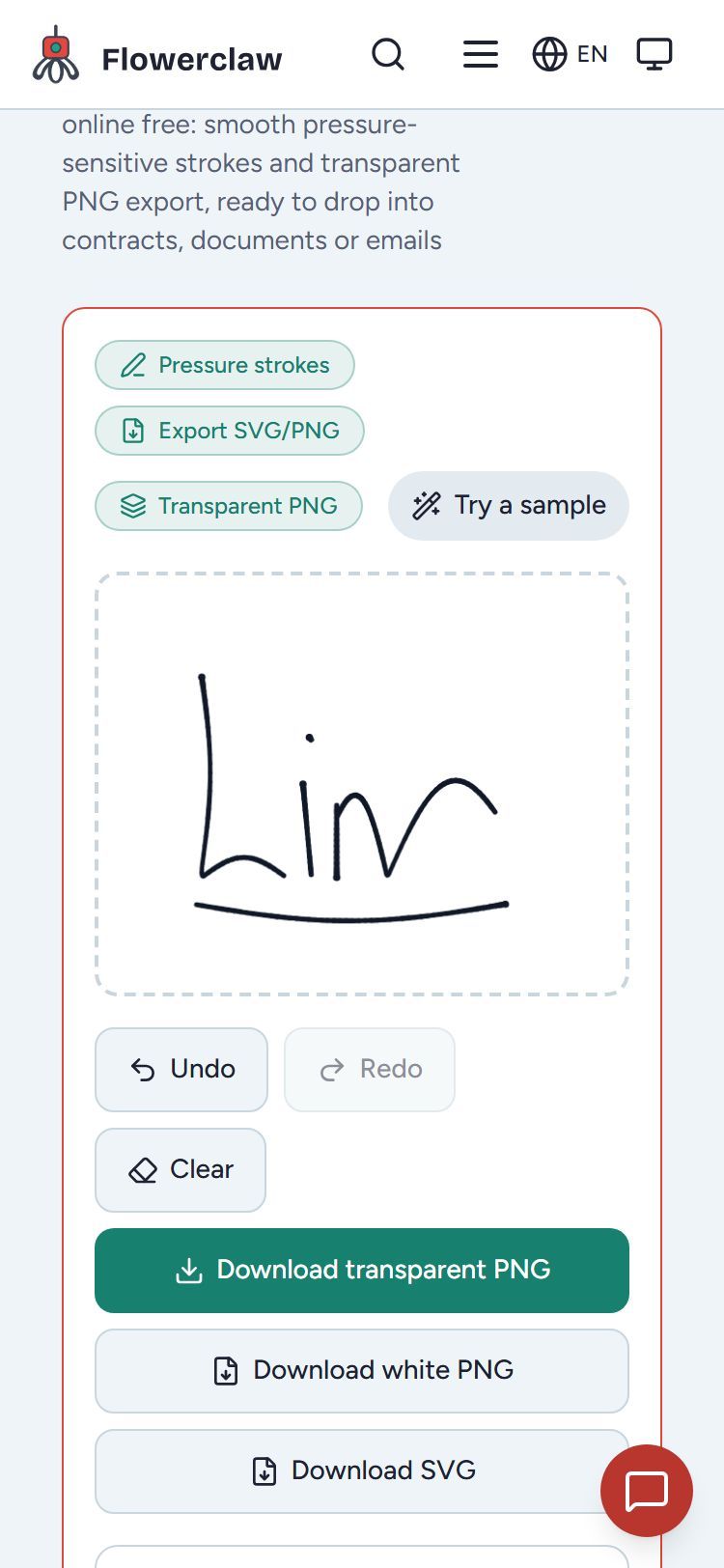
It works just as smoothly on a phone. The pad is built for touch, so the page doesn't scroll while you write:
Step 3: Download a transparent PNG
When you are happy with it, pick one of three downloads:
| Button | Best for |
|---|---|
| Download transparent PNG | Word, Google Docs and PDFs: the signature sits on top of text or a signature line with no white box |
| Download white PNG | Places that don't handle transparency, such as some online forms, or printing |
| Download SVG | A vector file that stays sharp at any size, handy for design work |
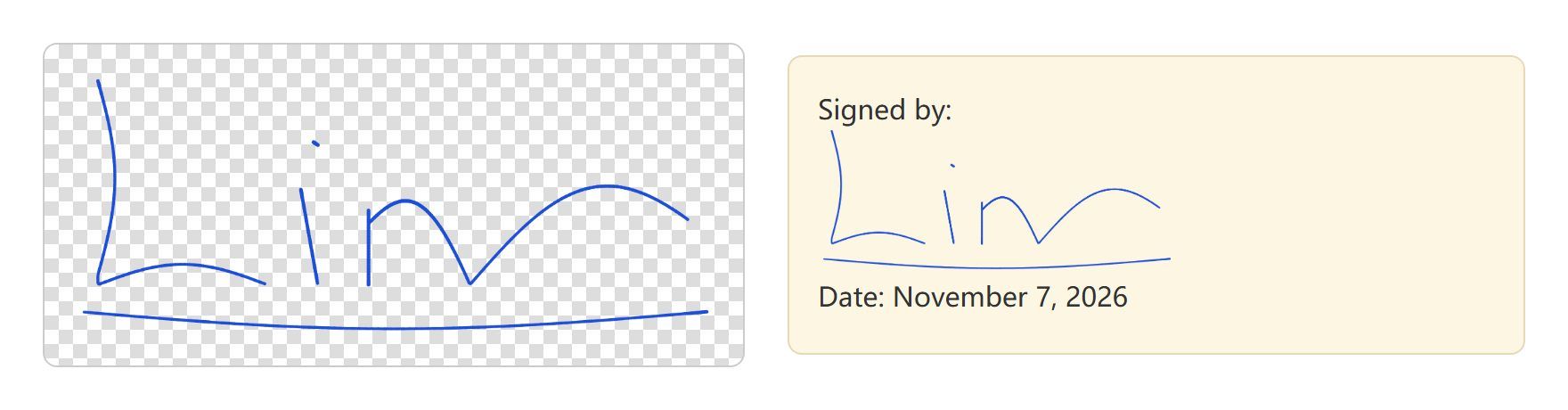
All three formats trim the empty space around your signature automatically, so there is nothing to crop afterwards. In our test, a 2x export produced a 1027 × 423 pixel PNG in which everything except the ink is fully transparent, so it shows only the strokes on any background.
Step 4: Add it to Word or Google Docs
Microsoft Word:
- Put the cursor where the signature goes, then choose Insert → Pictures → This Device and pick the PNG you downloaded.
- Select the picture, click the Layout Options button next to it (or Picture Format → Wrap Text) and choose In Front of Text.
- Drag the signature onto the "Signature:" line and resize it from a corner handle, which keeps the proportions.
Google Docs: choose Insert → Image → Upload from computer, click the image and select In front of text in the toolbar below it, then drag it into place.
Once the signature is in one document, you can copy and paste it into future documents instead of drawing it again.
Step 5: Put it in a PDF
You can't edit a PDF the way you edit a Word file, so there are two common routes:
- Sign in Word, then export: place the signature as in step 4, then use File → Save As (or Export) and choose PDF.
- Sign in Adobe Acrobat Reader (free): open the PDF, choose Fill & Sign, then Add signature, select Image and import your transparent PNG. Drag it to the signature field.
If the other side insists on "print, sign by hand and scan", photograph the signed pages with your phone and combine them into one file with Image to PDF; to delete or rotate pages, use the PDF Page Manager. Both tools also run locally in your browser, so your files are not uploaded.
Is a signature image safe?
- While you create it: the signature exists only in your browser and, once downloaded, is just a file on your device. The draft is kept in your browser as well, so it survives a page refresh.
- When you use it: an image can be copied. Don't post a high-resolution signature in public chats or share it via public links, and send people the signed PDF rather than the signature image on its own.
Is an electronic signature like this legally valid?
In most countries, an electronic signature can't be rejected just because it is electronic, but how much it proves depends on the type of signature.
- United States: the federal ESIGN Act (2000) states that a signature, contract or other record may not be denied legal effect, validity or enforceability solely because it is in electronic form. Almost every state has also adopted the Uniform Electronic Transactions Act (UETA). ESIGN does not apply to some documents, including wills and testamentary trusts, adoption, divorce and other family-law matters, court documents, utility shut-off notices, foreclosure and eviction notices for a primary residence, and cancellation of health or life insurance.
- European Union: under the eIDAS Regulation (EU) No 910/2014, an electronic signature may not be denied legal effect or be refused as evidence just because it is electronic. Only a qualified electronic signature automatically has the same legal effect as a handwritten one. One step below, an advanced electronic signature must be uniquely linked to the signer, identify them, be created with means under their sole control, and make any later change to the signed data detectable.
- United Kingdom: the Law Commission's 2019 report on electronic execution confirmed that an electronic signature can be used to sign a document in most cases, provided the signer intends to authenticate it.
A signature image pasted into Word is a "simple" electronic signature. It shows intent, but on its own it can't prove who placed it or that the document wasn't edited later. So:
- Internal approvals, leave requests, CVs, informal confirmations: a signature image is normal and usually fine.
- Important contracts (loans, leases, employment contracts and the like): use an e-signature platform with identity verification, certificates and an audit trail, or sign a paper original.
- Wills, family-law and court documents: follow the formal requirements where you live; these are often excluded from e-signature rules.
(This summary of the legislation is for general information only and is not legal advice. For a specific situation, ask a qualified lawyer.)
Make yours now: open the Signature Generator, pick the fountain pen in black or blue, write your signature a couple of times, keep the best one and download it as a transparent PNG.